Open the share sheet Link to this section
Publish the form, then choose Share in the form header. The share sheet brings the short link, QR code, social channels and embed code together. Every generated address keeps using the same published form.
The Link tab offers that address in two shapes. The short one, tfrm.be/k7m2qpza, is the one to print, read out loud or put on a badge. The descriptive one, tinyforms.tools/w/your-workspace/autumn-workshop, says what it is before anybody clicks. Both open the same form, and the QR code, the share buttons and any values you prefill follow whichever you pick.
- Copy the short link or use the device share menu.
- Download a print-ready PNG QR code.
- Share through email, WhatsApp, Facebook, LinkedIn or X.
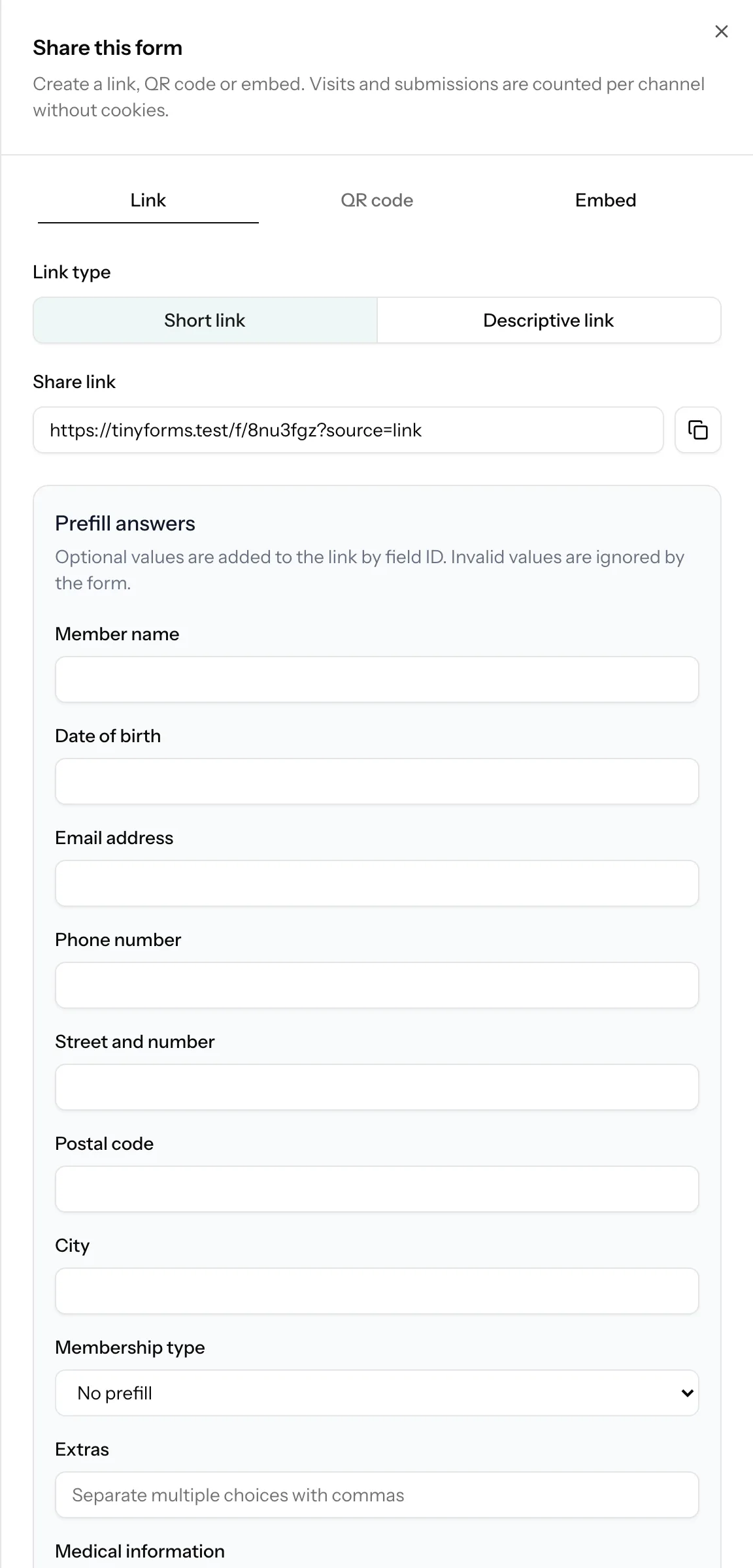
Prefill answers Link to this section
The Link tab can add a value for any supported field. TinyForms puts it in the query string under the stable field ID, so the first page already opens with that answer filled in.
Invalid values stay empty
Unknown options, out-of-range numbers and invalid boolean values are ignored. File uploads, signatures and repeaters cannot be prefilled.
Embed the form Link to this section
Choose inline, popup or drawer and paste the generated snippet into your website. The embed resizes automatically. After a successful submission a popup or drawer closes, while external payment and redirect pages open at host-page level.
After submitting and insights Link to this section
Leave the redirect setting empty to show the thank-you message. Enter a full HTTP or HTTPS address to send respondents to another page instead. The published version of the setting is used, including after a payment return.
The Insights tab groups form views and submissions by direct traffic, copied links, QR codes, social channels and embeds. Only daily counters are stored: TinyForms does not use a tracking cookie or visitor identifier for this.