What a personal link is Link to this section
A personal link is one recipient's own address for a form, such as tinyforms.tools/i/k7m2qpza. It is not a copy of the form: it is your form, opened with that person's answers already filled in, their choices narrowed to what applies to them, and a reference of yours travelling along without ever being shown.
The address carries no question mark and no parameters, and the code avoids characters that are easily misread, so it fits on a printed invitation and survives being typed back in capitals.
Part of the Business plan
Generating and managing personal links needs Business. Links that already exist keep working even if the workspace moves to a smaller plan, so an invitation already in the post is never invalidated.
Publish before you send
A personal link opens the published form, so it answers with "page not found" for as long as the form is a draft, exactly like the form's own address. The recipient panel says so while the form is unpublished. Publishing changes nothing about the links themselves: an address you already sent or printed starts working as it is.
Uploading your recipient list Link to this section
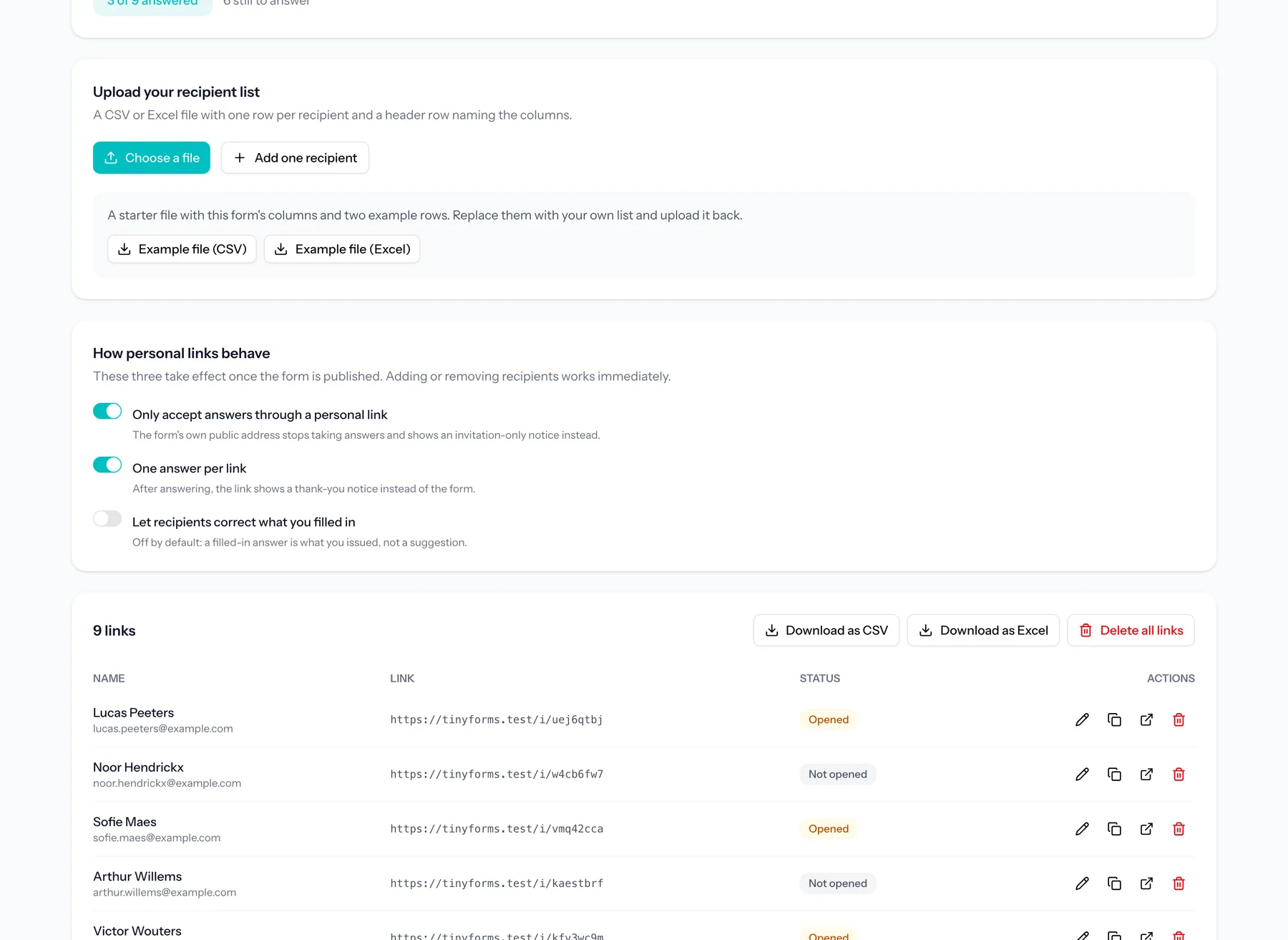
Open the Personal links tab in the form editor and upload a CSV or Excel file. The first row is read as the header naming the columns, and every row underneath becomes one recipient.
Start from the example
Download the example file from the tab. It already carries this form's columns and two example rows, so you can replace them with your own list. CSV or Excel, up to 2,000 rows per upload.
Check the columns
TinyForms shows every column with its first few values, so you can see what you are working with before anything is created.
Check the mapping
The first column is taken as the name, the second as the email, and every column after that is carried along hidden under its own name. Change any of them, and point a column at a field if you want it to fill in an answer or narrow the choices.
Generate
One personal link per row, each with its own address.
What a column can be used for Link to this section
- Name of the recipient: shown in your list and at the top of their form. It is not stored as an answer.
- Email address: kept for your own reference. TinyForms does not send the invitations.
- Fill in an answer: the value lands in the field you point it at and, by default, cannot be changed by the recipient.
- Limit the choices: only the options named in that column stay selectable on a dropdown, radio group or checkbox field, and for a field that takes its options from the link, that column is where they come from. Separate several with a semicolon.
- Carry along, hidden: never shown and never asked, but travels with the answer and comes back in your export.
Values are matched on what respondents see
A column holding "19 November" matches the option labelled "19 November" as well as its stored value, so you can keep your spreadsheet in plain language.
Choices that only exist for one recipient Link to this section
Narrowing works when everybody picks from one list. Sometimes there is no such list: an estate agent offers each client the viewing slots they happen to be free for, and no two clients get the same ones. A choice field can then take its options from the personal link instead of from the form.
Add 'Choice per recipient' from the field catalog, or switch on 'Options come from the personal link' in the settings of any dropdown, radio group or checkbox. The field then holds no options of its own: you fill them in per recipient, by typing them into the recipient panel or by pointing a column of your upload at that field.
- Every recipient sees exactly what was written for them, spelled the way you wrote it.
- An answer outside that list is refused, exactly like an option that was never offered.
- A recipient who was given no options for that field does not see the field at all, even when it is required.
- A price or a maximum per option does not apply here. Those belong to a shared list, and this one is nobody's but the recipient's.
Make the form invitation-only
Someone opening the form at its public address has no link, so the field is left out for them entirely. Switch on 'Only accept answers through a personal link' unless that is what you want; the check before publishing points it out.
Text that speaks to one recipient Link to this section
A heading or a paragraph can name the recipient too. {RECIPIENT} is who the link was made out to, and every hidden column travels along under its own name, so a column called 'Pand' is {PAND}. Type a { in any heading, paragraph, thank-you text, email subject or intro and the available ones are listed.
- {RECIPIENT} is written exactly like that in every language. It is our word rather than one of yours, so switching the form's language never breaks it.
- A hidden column is matched on its name however either of you capitalised it.
- The same placeholders keep working after answering, on the thank-you page and in the emails. Where a field label and a hidden column share a name, the answer wins.
- A placeholder nothing can fill is left exactly as you typed it, braces and all, so an unresolved one is visible instead of your sentence quietly losing a word.
In text, never in a question
Labels and help texts are left alone. A question that reads differently per recipient is a different question, and the answers to it would no longer belong in one column of your export.
Adding or correcting one recipient Link to this section
Every campaign gains a recipient late, and every uploaded file has one row that was wrong. Add one recipient opens the same panel as the edit pencil, and both reach everything a column of your file can: the name, the email, the answers filled in, the choices that stay selectable, and the hidden context. Nothing has to be re-uploaded to fix a spelling or move one person to another date.
- A recipient added by hand starts with the hidden keys the rest of your list already uses, so you fill them in instead of retyping them.
- Editing never changes the address, so an invitation already printed or sent keeps working.
- The panel shows the whole recipient: an answer you clear is cleared, and a choice you untick is no longer limited.
How links behave Link to this section
Three settings decide what a personal link means for this form. They are part of the published form, so publish once after changing them. Adding and removing recipients always takes effect immediately.
- Only accept answers through a personal link: the form's own public address stops taking answers and shows an invitation-only notice.
- One answer per link: after answering, the link shows a thank-you notice instead of the form. On by default.
- Let recipients correct what you filled in: off by default, so a filled-in answer is what you issued rather than a suggestion. It concerns answers only; hidden context is never shown either way.
A deleted answer hands the link back
One answer per link means one answer that is still standing. Delete the answer, clear the whole list of them, or withdraw the registration, and that recipient's link opens again: they can answer where they had already answered. Restoring the answer from the bin closes the link with it. This is what lets you let one person fill it in again without reissuing their invitation.
A link is not a login
Whoever holds the address can answer as that recipient. That is the right trade for an RSVP or a renewal, and the wrong one for anything you would otherwise protect with a password.
The address you hand out Link to this section
A recipient's address comes in two shapes: tinyforms.tools/i/k7m2qpza, and the short tfrm.be/k7m2qpza. Pick one under "The address you hand out", above the list. What you pick is what the list, the copy buttons, the CSV and Excel exports and the QR codes all hand out from then on.
The short one is the one to print on a card, put on a badge or read out over the phone. Its QR code has fewer squares as well, so it scans from further away and survives being printed small.
Both keep working
Switching decides which address leaves here next, never what somebody is already holding: an invitation in the post keeps opening the same form whichever shape its address has. The switch also takes effect at once, without republishing.
The notice the recipient opens on Link to this section
A recipient opening their own address is greeted by a notice naming who the invitation is for: "This invitation is for Joske Vermeulen." Under it, a second line explains that the answers already filled in came from you. The notice belongs to the published form, so publish once after changing it.
- Show who the invitation is for: on by default. Switch it off when your own heading already names the recipient, so the page does not say it twice.
- Add a second line: switch it off to leave the name standing on its own.
- What that second line says: leave it empty for our sentence, which only appears when you filled answers in. Write your own and it is always shown, exactly as you wrote it.
Your own line can name the recipient
The second line takes the same placeholders as a heading: {RECIPIENT} is who the link was made out to, and every hidden column travels along under its own name. So "Your appointment is on {DATUM}" is filled in per recipient.
Following up and exporting Link to this section
Each link shows whether it has been opened and whether it has been answered, with a running count of how many recipients have replied. Download the list as CSV or Excel to get every row back with its generated address, code and status, plus the hidden columns you carried along. That export is the file your print shop or your own records work from.
Deleting recipient data Link to this section
Personal links hold names and addresses before any answer exists, so deleting a link is how that data is erased. Delete one link, or the whole list at once. Answers already given keep the hidden reference that travelled with them and simply lose the pointer back.
Not covered by automatic purging
Unlike submissions, personal links are never deleted automatically. A printed address has to keep working for as long as the campaign runs, so clearing the list stays a deliberate act. Deleting the form deletes its links with it.
QR codes for printed invitations Link to this section
Every personal link has a QR code. Open one from the list to look at it and download it as an image for a single invitation, or use "QR codes" above the list to get every recipient on one sheet.
The sheet puts each recipient on their own card with their name, their address written out and the form's title, ready to print and cut up. The address is on the card in full on purpose: a code that will not scan has to still be usable by hand.
Generated in your browser
The codes are made on the page you are looking at. No address is sent anywhere to be turned into a picture.