Create and organise Link to this section
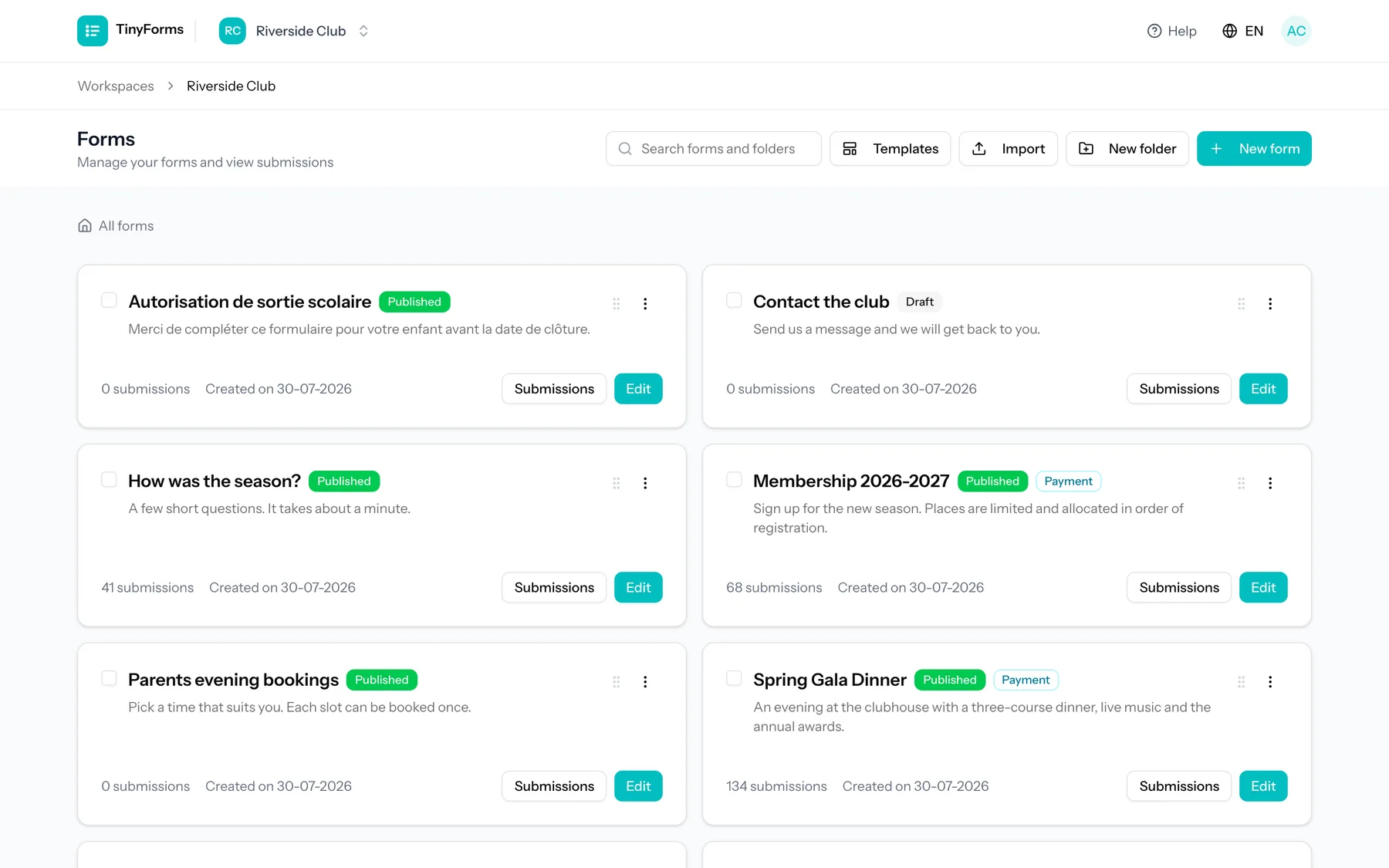
Create a new form and start adding fields. You can duplicate an existing form to reuse its setup, and organise forms into nested folders to keep things tidy as you grow.
The search box above the list finds forms and folders by name anywhere in the workspace, not just in the folder you happen to have open, so you can jump straight to something filed away without clicking through the tree. Searching also matches a form's description.
Every form carries its own menu behind the three dots on its card: edit it, open the live form, copy its link, duplicate it, export it, move it to a folder or delete it. Ticking several forms first turns moving and deleting into one action for the lot, and a form can also simply be dragged onto a folder.
Drafts and publishing Link to this section
A form has a working draft and a published version. You edit the draft freely; visitors only ever see the published version. This means your changes are never live until you choose to publish them.
Edit your draft
Add and configure fields, layout and settings.
Preview
Open a preview to see exactly what respondents will get. Fill it in to end on your thank-you screen, with placeholders filled from the answers you just typed. Nothing is saved.
Publish
Publish to make your changes live at the public address.
TinyForms shows when your draft has unpublished changes compared to the live version, and you can discard draft changes to return to what is published. A preflight check runs before publishing to catch problems early.
Click that unpublished-changes marker to see what publishing would actually change: the questions and blocks that were added, removed, edited or moved, and the settings that differ from the live version, each grouped under the tab it is edited on. It compares your saved draft with the published version, so save first if you want your latest edit included.
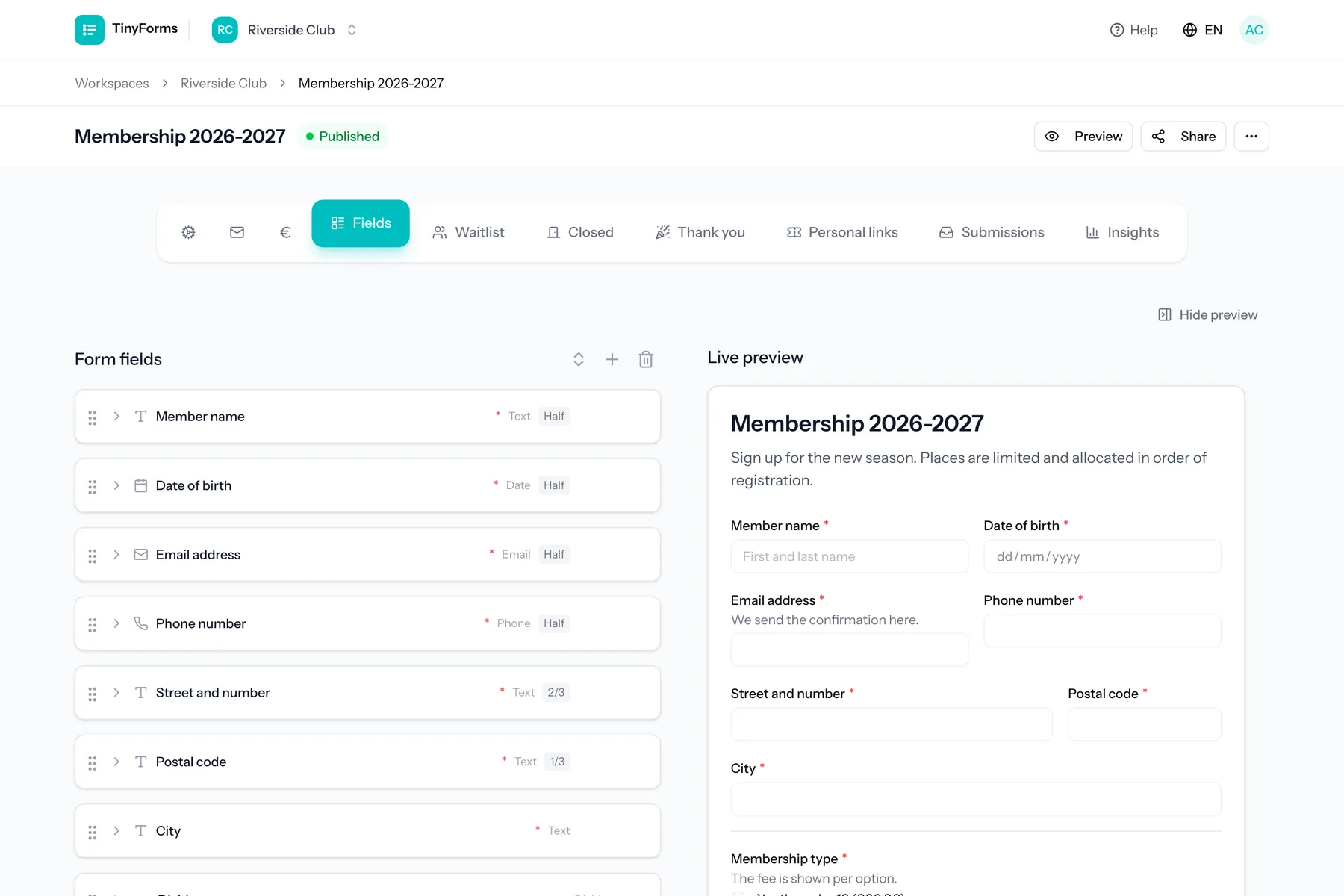
The live preview sits beside the builder and follows every keystroke. It stays in view while you scroll through your fields, and scrolls on its own once the form grows taller than the screen. Hide it with the button above it, or with Cmd + \ (Ctrl + \ on Windows), to give the fields the full width. TinyForms remembers your choice.
The form’s own address Link to this section
Every form answers at an address of its own, made of the workspace and the form: tinyforms.tools/w/your-workspace/autumn-workshop. The last part follows the title while the form has never been published, and you can set it yourself under Settings, General, in the Address field.
Lowercase letters, numbers and hyphens, and free within the workspace. A duplicated form arrives with -copy on the end, which is usually the first thing worth rewriting once it has a title of its own.
Changing it moves the form
The new address answers the moment you save, and the old one stops answering at that same moment, in every link, QR code and printed flyer already carrying it. A published form therefore never moves on its own, however often its title is edited.
Import and export Link to this section
You can export a form to a .tinyforms file and import it back later or into another workspace. This is handy for reusing a setup or moving a form between accounts.
Removing a field keeps its answers
Deleting a field from a form does not delete what people already answered to it. Those answers stay with their submission and keep showing up, marked as coming from a removed field, in the recap and in every export. Only deleting the submission itself removes them.