Enable payments Link to this section
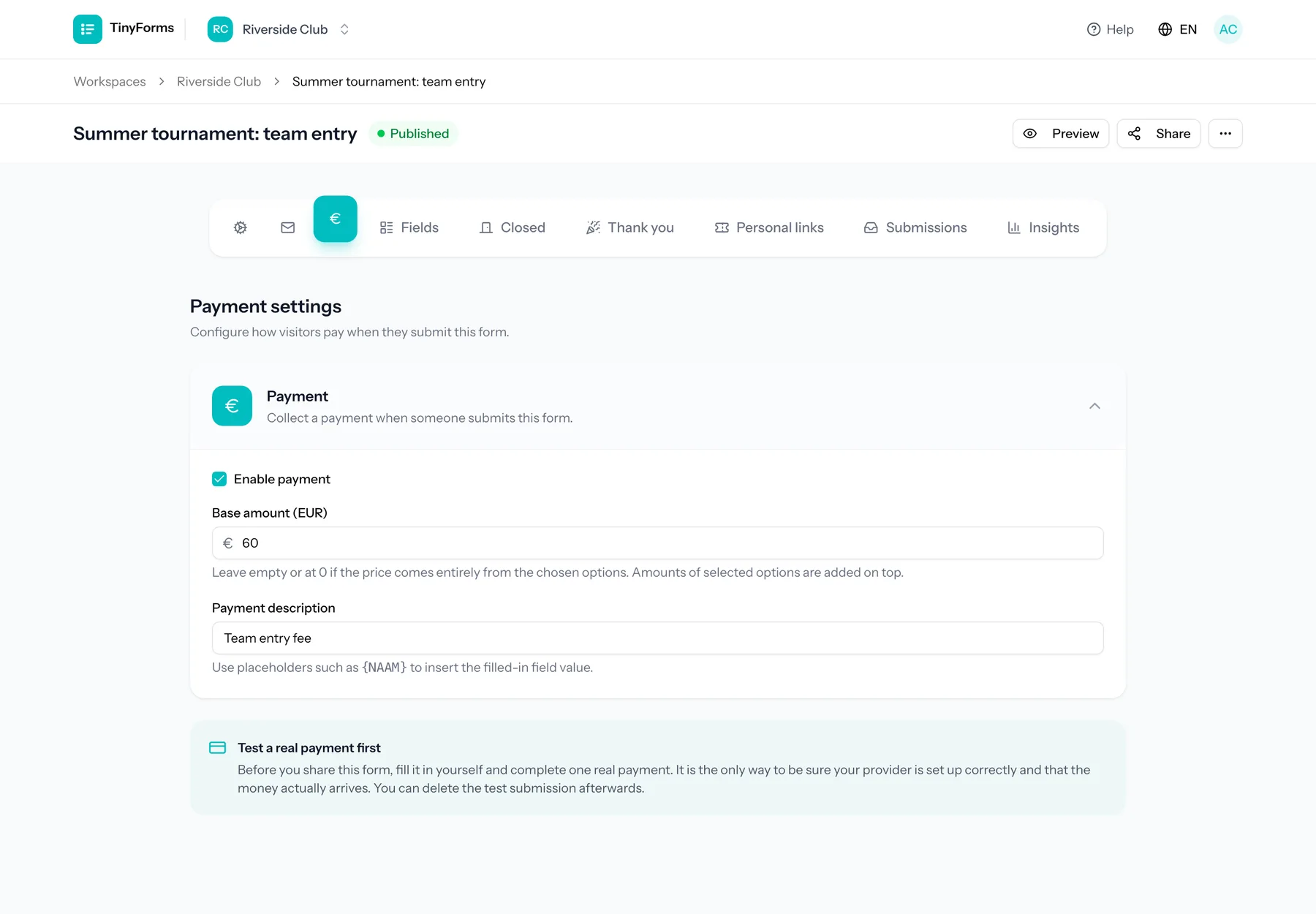
Turn on payments for a form to collect money when someone submits, for example a registration fee or contribution. Payments are processed through Mollie.
Plan feature
Payments are available on paid plans, and your workspace needs a payment provider configured. See Payment settings.
Fixed or per-field pricing Link to this section
Charge a single fixed amount, or build the total from the choices people make. Options in checkbox, radio and select fields can each add to the price, so the amount reflects exactly what someone selected.
A field only counts towards the total once you switch it on. Open a field's settings and turn on "This field affects the amount". The setting is always there on a field that could carry a price, so if payments are still off for the form it tells you so and takes you straight to the payment settings.
A number or slider field can carry a price per unit instead of per option. The total multiplies that price by the number someone enters, so an "Amount of barbecues" field at 25 euro each adds 75 euro for three. Give the field a maximum so the quantity stays sensible, and add one field per item you sell.
Two options can carry different prices and still sell the same places: a single date at one price, the whole series at another. That is what shared places are for, described under Submission settings.
You can also set a custom payment description that appears during checkout. Put a field label between braces to fill it with the answer, for example "Barbecue 14.08 {Name}". The form shows the description under the amount and fills the placeholders while people type, so they read the exact line that ends up on their bank statement.
Payment status Link to this section
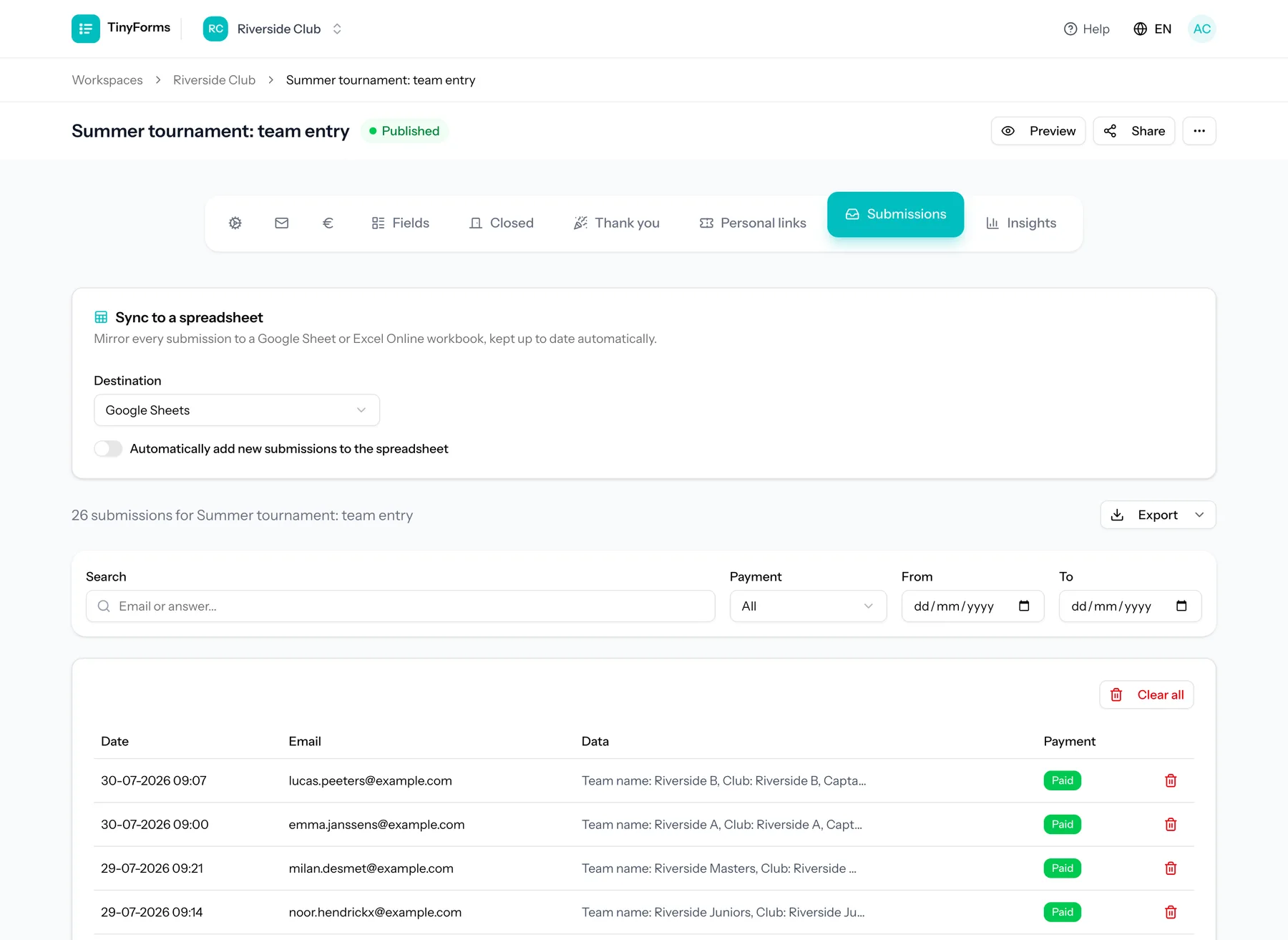
Each submission tracks its payment status: pending, paid or failed. The status is updated automatically when Mollie notifies us of the outcome.
Test before you share Link to this section
Once payments are switched on, fill in the form yourself and complete one real payment before you share the link. It is the only way to confirm your provider is set up correctly and that the money actually reaches your account.
Tip
Delete the test submission afterwards so it does not show up in your results.